
How to back up Google Workspace data: A practical guide for MSPs and IT teams

By N-able
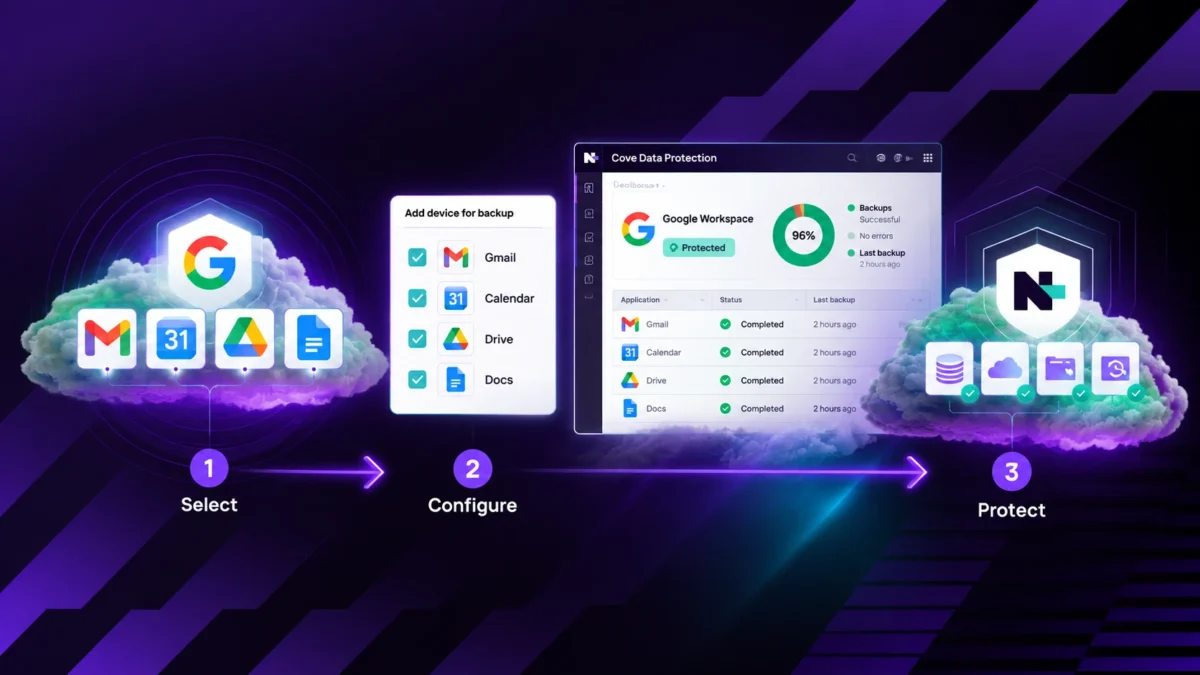
The first step to back up Google Workspace data isn’t picking a tool. It’s understanding what your current setup already covers, so you can apply the right criteria to complete the picture. Most guides skip straight to product setup, which leaves MSPs and IT teams implementing a solution without knowing whether it meets the recovery, retention, and compliance requirements they’ll answer for during an audit or an incident.
This guide walks you through auditing your current posture, choosing an approach, configuring automated backups, and verifying recovery. Read on for a buyer-side checklist and the questions to ask so you don’t implement a tool that falls short of the requirements you’ll be judged on later.
Before you back up: What Google Workspace protects and where your responsibility begins
Google Workspace runs a highly available, secure platform and includes native recovery tools, while your organization is responsible for the long-term recoverability of the data you store in it. Under the shared responsibility model, Google keeps the service running and secure, and you remain responsible for the data your users create and who can access it. A dedicated backup is one way to take ownership of that responsibility.
In practice, Gmail and Drive route deleted items to Trash for a set window, and admins can recover a deleted user account for roughly 20 days. Those recovery windows are designed for short-term restoration and are measured in days and weeks. A dedicated backup for Google Workspace adds long-term retention beyond those limits, which our complete guide to Google Workspace backup covers in full.
How Google Takeout and Vault differ from a dedicated backup
Google Takeout and Google Vault serve different purposes than a dedicated backup, because neither is designed to serve as an automated backup with restore. Each is excellent at the job it was designed for, and it’s worth being precise about that job before you rely on it for recovery.
- Google Takeout is a manual export utility. Someone runs it, stores the download safely, and reassembles the data by hand. It’s built for portability rather than an automated cadence or a restore path back into your live environment.
- Google Vault is built for archiving, eDiscovery, and legal hold. It helps you find and preserve data for compliance and litigation, and it does that well. Restoring individual emails or files to a working state on your own timeline is a different task.
Both are valuable for their intended purpose. A dedicated backup complements them by automatically capturing your data, retaining it long-term, and restoring it when you need it.
What data you need to back up in Google Workspace
You need to back up the data your users create and depend on daily, which spans email, files, and the apps that hold institutional knowledge. A complete backup scope extends protection beyond the native recovery windows.
Gmail, Drive, and Shared Drives
Gmail, personal Drive, and Shared Drive content are the highest-priority data to protect because they hold the bulk of day-to-day business communication and files. Gmail carries contracts, approvals, and audit trails. Personal Drive and Shared Drives store the documents teams actively collaborate on. A dependable backup captures all three automatically, preserves folder structures, and gives you restore options beyond a full-account restore.
Calendar and Contacts
Calendar and Contacts are easy to overlook but worth backing up, because they hold scheduling and relationship data that’s tedious to rebuild. A lost calendar can disrupt meetings and reminders across a team, and lost contacts can break workflows that depend on shared distribution details. Including both in your backup scope means a recovery restores a user’s full working context, not just their mail and files.
How to back up Google Workspace data: step by step
Backing up Google Workspace data follows four steps: audit what you have, choose an approach, configure automated backups, and verify recovery. Following those steps in order helps you avoid choosing a tool before you’ve fully defined your requirements.
Step 1: Audit your current backup posture
Start by documenting exactly what’s protected today, how long it’s retained, and how recovery works. Map your current reliance on native Trash and deleted-account windows, note which data types (Gmail, Drive, Shared Drives, Calendar, Contacts) have no independent copy, and record any retention or audit obligations your organization or clients carry. This audit becomes the requirements list you evaluate every option against.
Step 2: Choose a backup approach that fits your requirements
Choose an approach that meets your recovery, retention, and compliance needs rather than defaulting to the first tool you find. For most MSPs and IT teams, an automated, purpose-built cloud-to-cloud backup solution fits better than manual exports, because it removes human dependency and produces consistent, restorable recovery points. Weigh coverage, retention length, recovery flexibility, storage location, security, pricing model, and management overhead against the requirements from Step 1.
Step 3: Connect and configure automated backups
Connect your Google Workspace tenant and configure an automated backup schedule that runs without manual effort. With a cloud-to-cloud solution, this typically means adding a service account in the Google admin console and assigning OAuth scopes for Gmail, Drive, Calendar, and Contacts. Enable automatic discovery of new users where available, so coverage stays current as headcount changes rather than depending on someone to add each new account.
Step 4: Test and verify recovery
Test your recovery on a schedule, because a backup you haven’t restored is a plan, not a proven capability. Run a sample restore to confirm what you can select, where you can send it, and how long it takes. Regular testing surfaces problems like a misconfigured job or an incomplete data set while they’re still easy to fix, and it can provide evidence for audit and cyber insurance requirements. This matters because attackers increasingly target the recovery layer. A 2024 Sophos study on the impact of compromised backups found that 94% of organizations hit by ransomware reported attempts by attackers to compromise their backups, and 57% of those attempts succeeded.
Questions to ask before choosing a backup solution for Google Workspace
Before selecting a backup solution for Google Workspace, ask a consistent set of questions so you can compare options on the criteria that actually matter. Use the questions below as an evaluation framework.
What data does it back up
Confirm the solution captures Gmail, personal Drive, Shared Drive content, Contacts, and Calendar, and check whether it covers any additional apps you rely on. Coverage gaps are hard to spot until a recovery request lands on one.
How long is data retained
Ask what the maximum retention is and whether it can be configured. Because native deleted-account recovery is measured in days while audits and regulations often require data to stay recoverable for years, look for retention that extends well beyond native windows, up to seven years where offered.
How does recovery work
Ask whether you can restore individual emails, files, and folders, where you can restore them to, and how long it takes. Flexible recovery options can reduce cleanup after a restore.
Where are backups stored
Confirm backups live outside your production Google Workspace tenant and ask where the storage is physically located. Isolation keeps an event in production from reaching your recovery data, and regional storage options help you meet data sovereignty requirements.
How are backups secured
Ask about encryption and immutability as a baseline. Look for AES-256 encryption in transit and at rest, paired with immutable copies that resist tampering, so a compromised account can’t alter or delete your backups.
How is pricing structured
Ask whether pricing is per user or per gigabyte, and whether storage is included. Per-GB models can drift upward as Drive usage grows, while a predictable per-user rate with included storage keeps budgeting stable.
How much management overhead is required
Ask how the solution fits your existing workflow. A tool that shares one dashboard, one alerting model, and one restore workflow with the rest of your environment adds less overhead than a standalone console your team has to learn and monitor separately.
What good backup for Google Workspace looks like
Good backup for Google Workspace is automated, isolated, retained long-term, flexible in recovery, and simple to manage. Use this at-a-glance checklist to gauge the maturity of any backup strategy, not just a specific vendor:
- Automated cloud-to-cloud backup of Gmail, personal Drive, Shared Drive content, Contacts, and Calendar on a frequent, hands-off cadence.
- Isolation and immutability with AES-256 encryption, so recovery copies sit outside production and resist tampering.
- Long-term retention, extending well beyond native windows to meet compliance and audit needs.
- Deleted-user protection so a departed user’s data stays recoverable after the seat is reclaimed.
- Unified management so Google Workspace status sits alongside your other workloads in one dashboard.
- Predictable pricing with included storage, so costs stay stable as mailboxes and Drive usage grow.
A strategy that checks these boxes lets you standardize protection across every workload instead of maintaining a separate tool, login, and restore workflow just for Google Workspace.
How N-able approaches SaaS data protection
N-able approaches SaaS data protection by applying the same cloud-native architecture across every workload, so protection is consistent whether the data lives on a server, a workstation, or in the cloud. Cove Data Protection backs up data direct-to-cloud, keeping copies isolated and immutable by default so an attack on production can’t reach your recovery data.
The same platform MSPs and IT teams already use to protect servers, workstations, and Microsoft 365 data brings a consistent approach to Google Workspace. This cloud-native backup solution sends data directly to the cloud with AES-256 encryption and immutable copies, helping ensure an attack on production systems doesn’t reach recovery data. Cove also delivers automated recovery testing with a success rate of more than 99%, replacing hope with verified proof. In addition, TrueDelta technology moves up to 60x less data than image-based tools, while included cloud storage helps keep pricing predictable. Cove Data Protection™ for Google Workspace™ extends the same protection you already rely on to Gmail, Drive, Calendar, and Contacts.
Protect your Google Workspace data the right way
Backing up Google Workspace well comes down to a repeatable process: understand what native tools cover, define the data and requirements that matter to you, choose a solution that fits, and prove recovery works before you need it. That sequence keeps you from implementing a tool you can’t fully stand behind during an audit or an incident.
If your current approach relies on native short-term recovery windows alone, take a closer look at how a dedicated backup complements Google Workspace for long-term recoverability. Explore Cove Backup for Google Workspace to see how immutable, cloud-native backups and unified management help protect Gmail, Drive, Calendar, and Contacts under the same platform you use to safeguard the rest of your environment.
Google Workspace™, Gmail™, Google Drive™, Google Calendar™, Google Contacts™ and Google Vault™ are trademarks of Google LLC.
Microsoft 365 is a trademark of Microsoft Corporation.
The N-able trademarks, service marks, and logos are the exclusive property of N-able Solutions ULC and N-able Technologies Ltd. All other trademarks are the property of their respective owners.
© 2026 N-able Solutions ULC and N-able Technologies Ltd. All rights reserved.